On this page
Quick answer
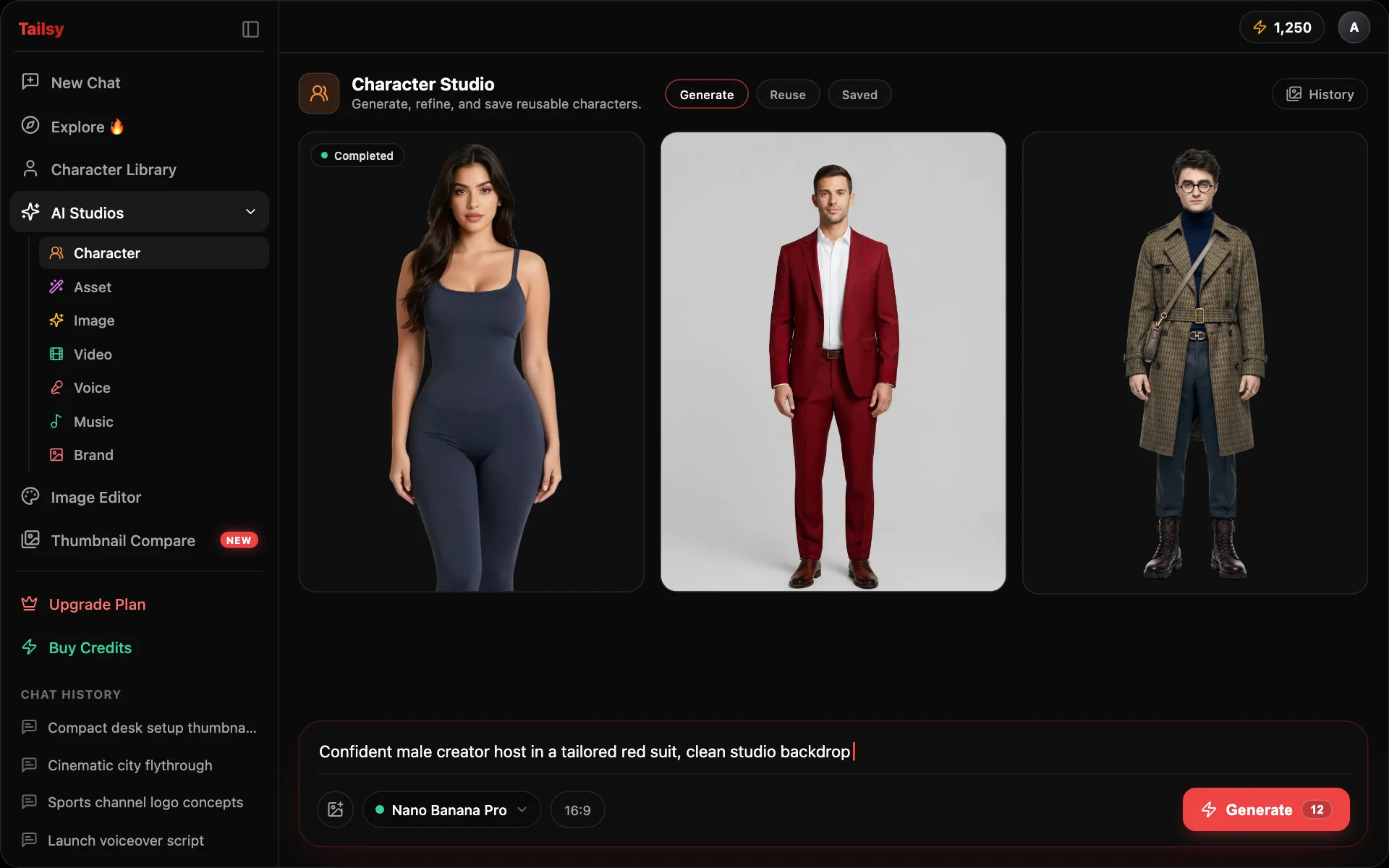
To put your face in AI thumbnails consistently, create a character in Tailsy's Character Studio. Train it from 10-20 clear photos of yourself (Premium and above, about three minutes), or generate or upload a character image. Then select that character in chat, Swap, Inpaint, or the Pose Generator, and it stays recognizable across videos.
Key takeaways
- Three ways to create a character: train from photos, generate from a prompt, or upload a finished image
- Training uses 10-20 photos of one person and takes about three minutes
- A character fixes identity, not outfit or pose, so every thumbnail can fit its own story
- Only train or swap faces of people who have given permission
Three ways to create a consistent AI character
Every character ends up in the same place, your character library, which holds up to 100 characters. How you get there depends on who the character is.
| Option | How it works | Best for |
|---|---|---|
| Train with 10-20 photos | Upload clear photos of one person, choose the best close-up as the main face, and train. Takes about three minutes. Available on Premium and above. | Putting your own face in thumbnails |
| Generate a character | Describe the character, generate with Z-Image Turbo, Grok Imagine, GPT Image 2.5 Flare, or Nano Banana 2, refine the result with an edit model, then save it. | Personas, mascots, and faceless channel hosts |
| Upload an existing image | Add a finished character image straight to your library. | Illustrated mascots or characters you designed elsewhere |
Where your character appears once it's saved
A saved character is a reusable identity reference. In chat, select it and the agent includes it in every new thumbnail concept unless you say otherwise, and makes it the lead of the scene. The character only fixes who the person is. Outfit, pose, expression, setting, and style stay open, so a cooking video and a travel vlog can each get a scene that fits.
- Chat: generate thumbnails and images with your character as the lead
- Swap in Image Studio: use the saved character as the source and choose "Just face" or "Full body"
- Inpaint: pick a character when regenerating a masked area
- Pose Generator in Asset Studio: create a new pose of a library character from text, a pose reference image, or both
How to use your character in a YouTube workflow
Consistency matters most across a series. A face regular viewers recognize can help your uploads stand out in their feed, and a trained character means you don't need a fresh photoshoot for every video.
- 1
Create the character once
Train on your photos, or generate and save a persona if your channel is faceless.
- 2
Develop the video in chat
Work out the idea and title first, then ask for thumbnails. The YouTube video ideas generator page covers how the chat develops an angle before you design anything.
- 3
Select the character and describe the moment
Example prompt (illustrative): "Thumbnail for 'I Fixed My Dad's 1998 Corolla With $200'. Me crouched by the open hood, grease on one cheek, grinning at the camera. Garage at night, one work light. Text: '$200 FIX'."
- 4
Ask for distinct directions
Request two or three variants that change the focal point, not just the color. Each keeps your face; each tells the story a different way.
- 5
Finish and check
Make small fixes with targeted edits, then check readability at feed size. Our AI thumbnail workflow guide walks through quality checks.
How to choose training photos
Training quality depends almost entirely on the photos you upload. These rules come from the training screen, plus a few habits that help for thumbnails.
Do
- Pick a main close-up that is clear, well lit, looking at the camera, with no sunglasses
- Include different angles, expressions, and lighting
- Use recent photos that match how you look on camera now
- Include a few big expressions (surprise, laughing) if your thumbnails use them
Avoid
- Mix in photos of anyone else, even once
- Use group shots; single-person photos train best
- Rely on heavily filtered or low-resolution selfies
- Train on someone who hasn't agreed to it
Characters for faceless channels and brands
Not every channel wants a real face. A generated host, an illustrated mascot, or a stylized narrator can give a faceless channel the same recognizability. Generate the character with a transparent or solid background so it cuts out cleanly, refine the details you care about (hair, outfit, signature prop), and save it.
Be careful with photorealistic generated people. A realistic invented person shouldn't be presented as a real customer, expert, or witness, in a thumbnail or in the video.
Consent, likeness, and YouTube's rules
A trained character is a model of a real person's face, so treat it like one. Train on yourself, or on people who have given clear permission, ideally in writing for team members, guests, or clients. Don't build characters of celebrities, creators you admire, or private individuals. YouTube lets people request removal of AI-generated content that simulates their face or voice, and videos can be taken down over it.
For realistic altered or synthetic content in a video, such as a real person appearing to say or do something they didn't, YouTube asks you to disclose it with the altered or synthetic content setting in YouTube Studio. Putting your own face in a clearly staged thumbnail is a different case, but YouTube's rules against misleading thumbnails still apply. The thumbnail has to match what the video delivers.
Workflows and models
- Photo training from 10-20 images of one person
- Character generation with Z-Image Turbo, Grok Imagine, GPT Image 2.5 Flare, and Nano Banana 2
- Refinement with Grok Imagine Edit, GPT Image 2.5 Flare Edit, and Nano Banana 2 Edit
- Transparent or solid backgrounds for clean character cutouts
- Pose Generator for new poses of a saved character
Frequently asked questions
How many photos do I need to train my face?
Between 10 and 20 photos of the same person. Choose one clear, well-lit close-up as the main face, and include different angles, expressions, and lighting in the rest.
How long does character training take?
About three minutes. Saving a generated or uploaded character is instant.
Which plan do I need?
Training from photos requires Premium or above. Uploading a finished character image and using characters in chat need a paid plan starting with Starter. New accounts get free credits on sign-up.
Will my character always wear the same clothes?
No. The character locks identity, not outfit, pose, or background. Describe the clothing you want in the prompt, or keep the outfit from a specific reference image if you need it to match.
Can I use someone else's face?
Only with their permission. Training or swapping a real person's face without consent can violate their rights and YouTube's privacy policies.
Can I use my character in AI video?
Yes, through a still. Generate an image or thumbnail with your character, then use it as the first frame or a reference in Video Studio.